Why this happens
Facebook only shares the pages that the profile you authorized with can actually manage, and only the permissions you approved on the consent screen. If page access wasn't granted, or the profile isn't an admin of the page, the dropdown comes back empty or shows a message like "No pages found."
Page roles and Business Manager roles are two different things. Being an admin of the Business Manager does not automatically make you an admin of every page inside it.
Who this affects
- Anyone connecting Meta (Facebook and Instagram) for the first time
- Anyone who reconnected Meta and unchecked toggles on the permission screen
- Team members connecting a page owned by someone else's business
Fastest fix
Reconnect and grant every permission Facebook asks for.
- Open the Brand tab, find the Meta connection, and edit it.
- Tap on View Permissions over your connected profile.
- A screen will open up, select 'Edit settings':
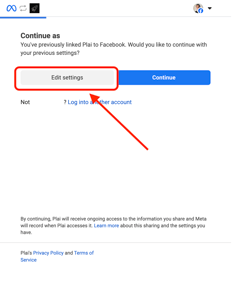
- On Facebook's permission screen, leave every toggle switched on and leave every page selected. This is the step most people get wrong — switching off even one toggle can hide your pages.
- Finish the connection and reopen the page dropdown. Your page should now be listed.
Other causes and fixes
- You're not an admin of the page: Editor, moderator, and advertiser roles aren't enough. Ask a current page admin to give you full admin access in Meta Business Settings under Accounts > Pages (they need to click on 'Assign people' to give you access to it), then reconnect.
- The page isn't in the Business portfolio you connected with: If you authorized Business portfolio A but the page lives in Business portfolio B, it won't appear. Add the page to the Business portfolio you connected with, or reconnect using the correct one.
- You authorized with a personal Facebook profile that has no page access: A personal profile with no page role and no business attached will return an empty list. Sign in with the profile that holds the page admin role.
- The page is unpublished or restricted: Pages that are unpublished, in draft, or restricted by Meta are hidden from the API. Publish the page in Facebook's page settings, or resolve the restriction with Meta first.
- The page is brand new and still in Meta's review: Newly created pages can take up to 48 hours to become available to connected tools. Wait, then reconnect.
How to verify your page access
- Go to Meta Business Settings.
- Open Accounts > Pages.
- Select your page and check the people listed against it — your profile should show admin (full control) access.
If your page isn't listed there at all, it hasn't been added to that Business Manager yet.
If nothing works
Gather this before you reach out:
- The page name and its Facebook URL
- The name of the Business Manager (also called Business Portfolio) you connected with
- The role your profile shows under Accounts > Pages
- Which Facebook profile you signed in with
- A screenshot of the empty page dropdown
Then contact support through your settings page with those details.